
Scheduling & Dispatch
From an unassigned job to a tech on site: the slot finder, the board, the calendar.
Scheduling decides when a job happens. Dispatch decides who does it. Manuall gives you three views to work in (Board, Calendar, Map) and one engine that ranks the options for you (the slot finder).
The four moves a dispatcher makes
- Triage. A new job appears (estimate conversion, recurring schedule, service request, or manual create). It starts at New, sitting in the Unassigned lane.
- Choose a slot. A date and time window that fits: your hours, the customer's hours, drive time, and existing commitments.
- Choose a tech. Right skills, free at that time, willing to travel that far.
- Confirm. Customer notified (optionally by text), tech notified (push and in-app).
Manuall can do moves 2 through 4 in one click with Suggest Slots. More on that below.
The Dispatch board
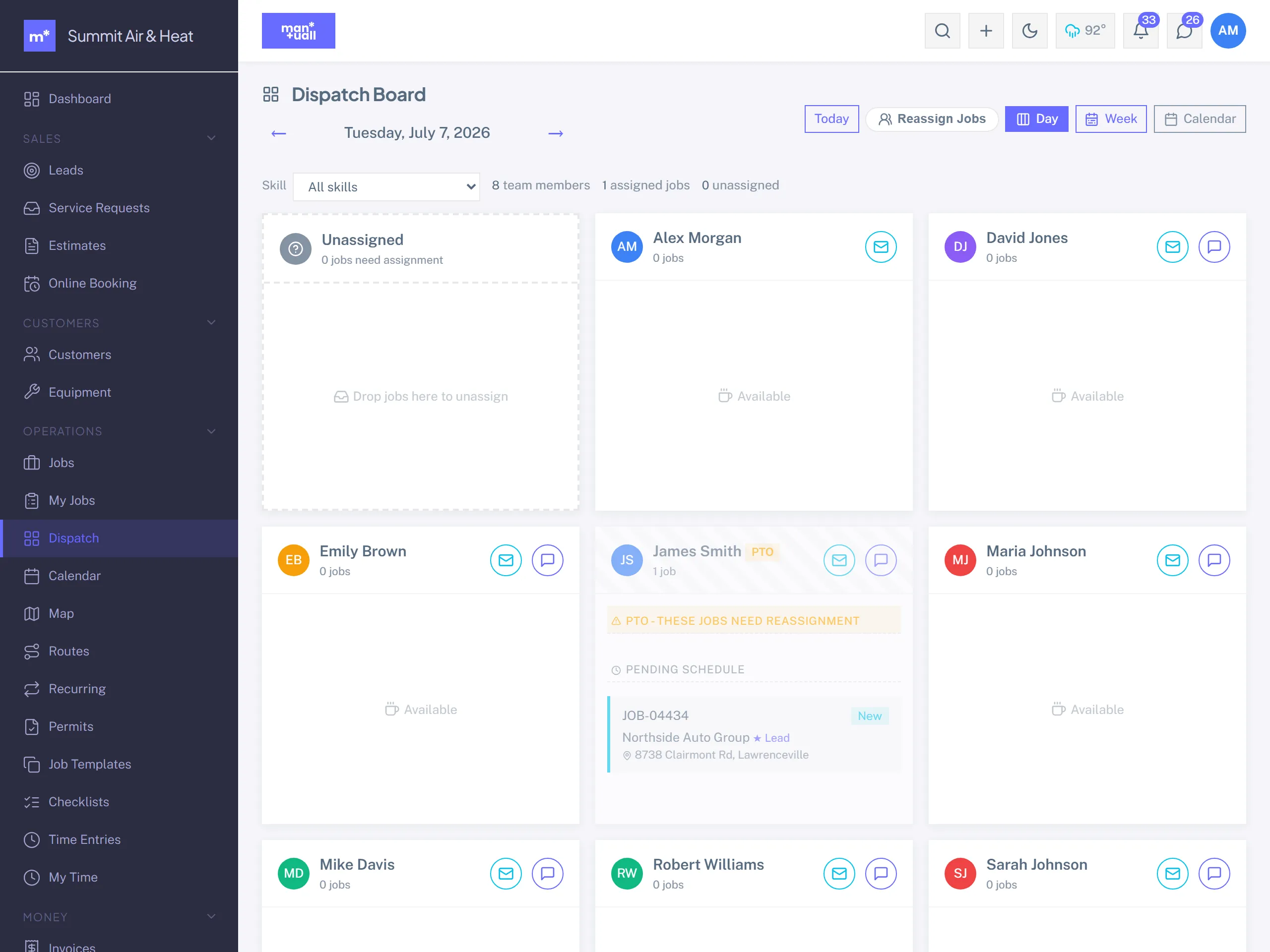
Sidebar -> Dispatch. A lane per active tech plus an Unassigned lane, with a day view and a week view. Each card is a job, colored by status.
- Drag from Unassigned onto a tech to assign.
- Drag between lanes to reassign.
- Drop back to Unassigned to unassign; the job reverts to New.
Drop a job on a tech who's already booked in that window and Manuall warns you and asks you to confirm before it double-books.
The Calendar
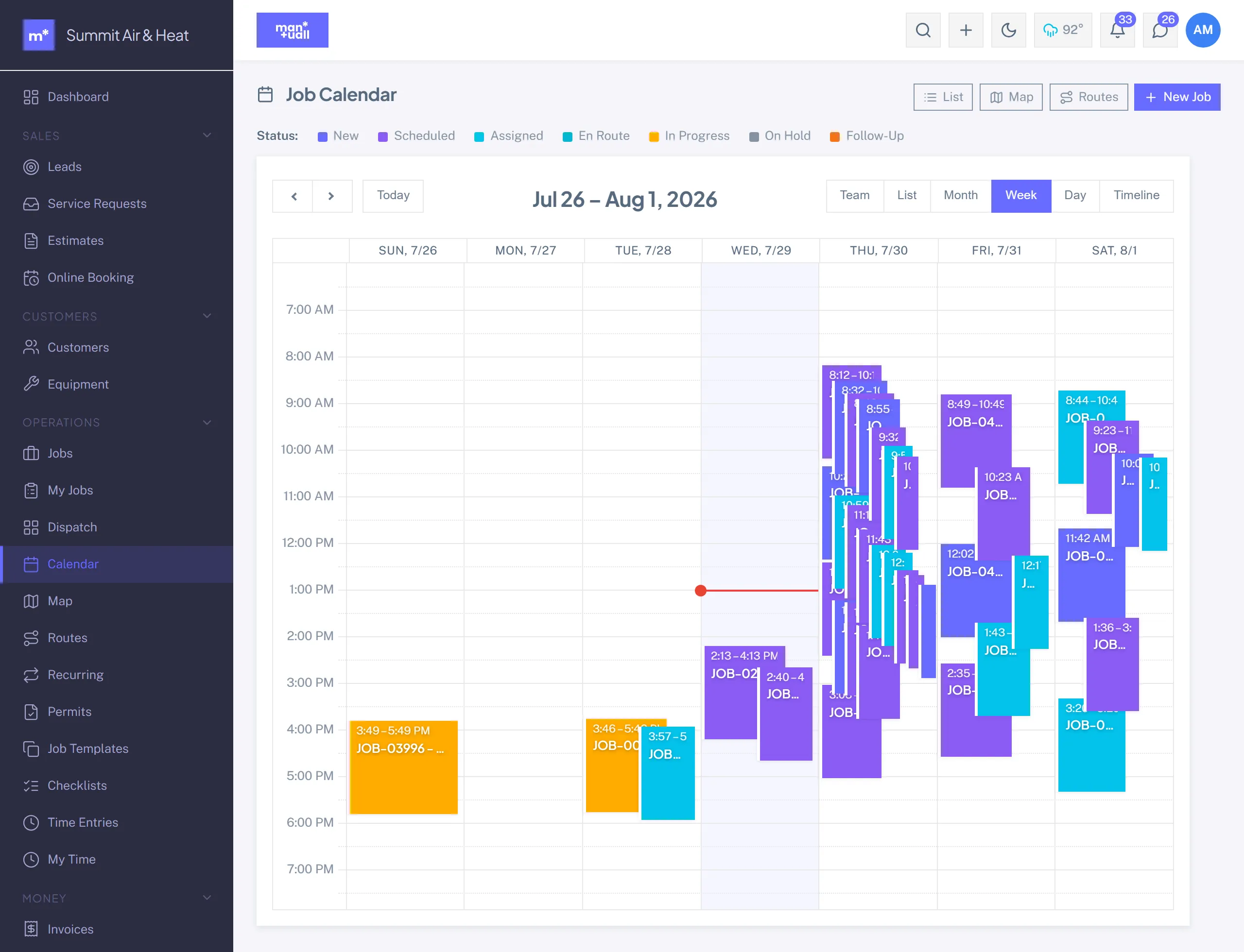
Sidebar -> Calendar.
| View | Use it when |
|---|---|
| Month | You want the bird's-eye on next week. |
| Week | The default. Hour by hour, drag to reschedule. |
| Day | A tight day, lots of jobs. |
| List | Print-friendly, sortable, no layout. |
| Timeline | One row per tech, jobs as bars. Good for spotting overlap. |
| Team | Like Timeline but multi-day. The "everyone, this week" view. |
On any view: drag a job to a new slot, click an empty slot to quick-create, click a job for full detail, filter by status, tech, or service area.
The slot finder (capacity scheduler)
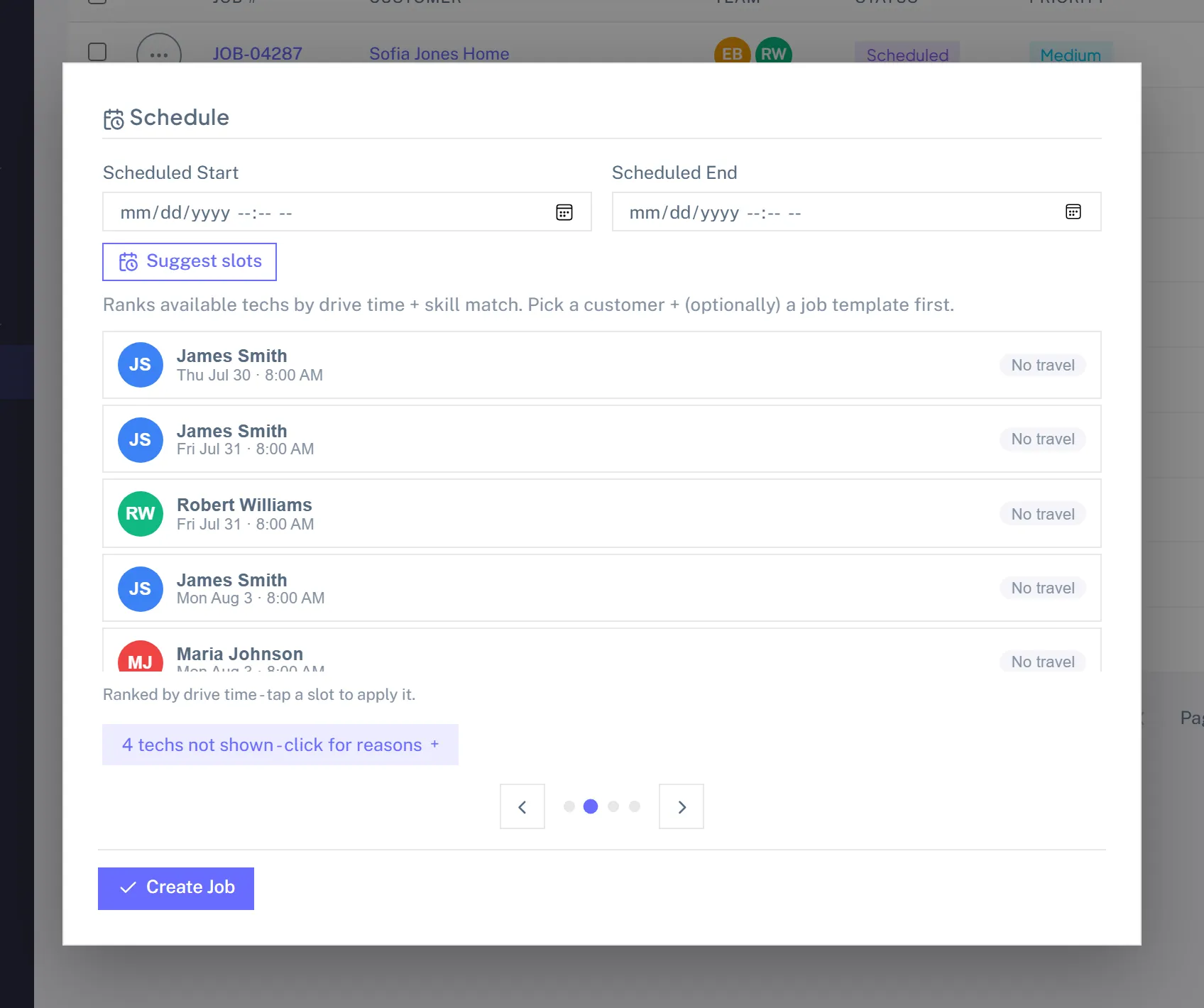
Use it from the Job Create form or an existing job's Schedule section, via Suggest Slots. It:
- Reads the job's required skills (from its template, or set directly).
- Reads the job's estimated duration.
- For each tech with the required skills, walks the next 14 days hour by hour for a window that fits.
- Drops windows where the drive time from the previous job would push the tech past their service radius.
- Drops blockers (PTO, sick, off days).
- Ranks the rest by drive time and how soon they are (closer and sooner scores higher).
- Returns the top 10 as cards.
Click a card and it fills the job's Scheduled Start, Scheduled End, and the assigned tech in one go.
The "why no slots" diagnostic.
If nothing comes back, the response also lists which techs were excluded and why: "Tech Mike: missing skill 'EPA 608'" or "Tech Sarah: 47 mi outside her 30 mi radius." It saves the "is this thing broken?" debugging.
How drive time is estimated
Manuall uses a straight-line distance between the previous job and the new one, at a typical mixed urban-and-rural speed. Accurate enough for scheduling decisions, not for last-mile routing. For that, hand off to Google Maps with Open in Maps on the job detail.
Tech availability: set it up once
- Sidebar -> Team -> click the tech.
- Schedule & Service Area tab.
- Set their base location (home or yard).
- Set their service radius in miles.
- Set their weekly schedule: a start, an end, or Off for each day.
- Save.
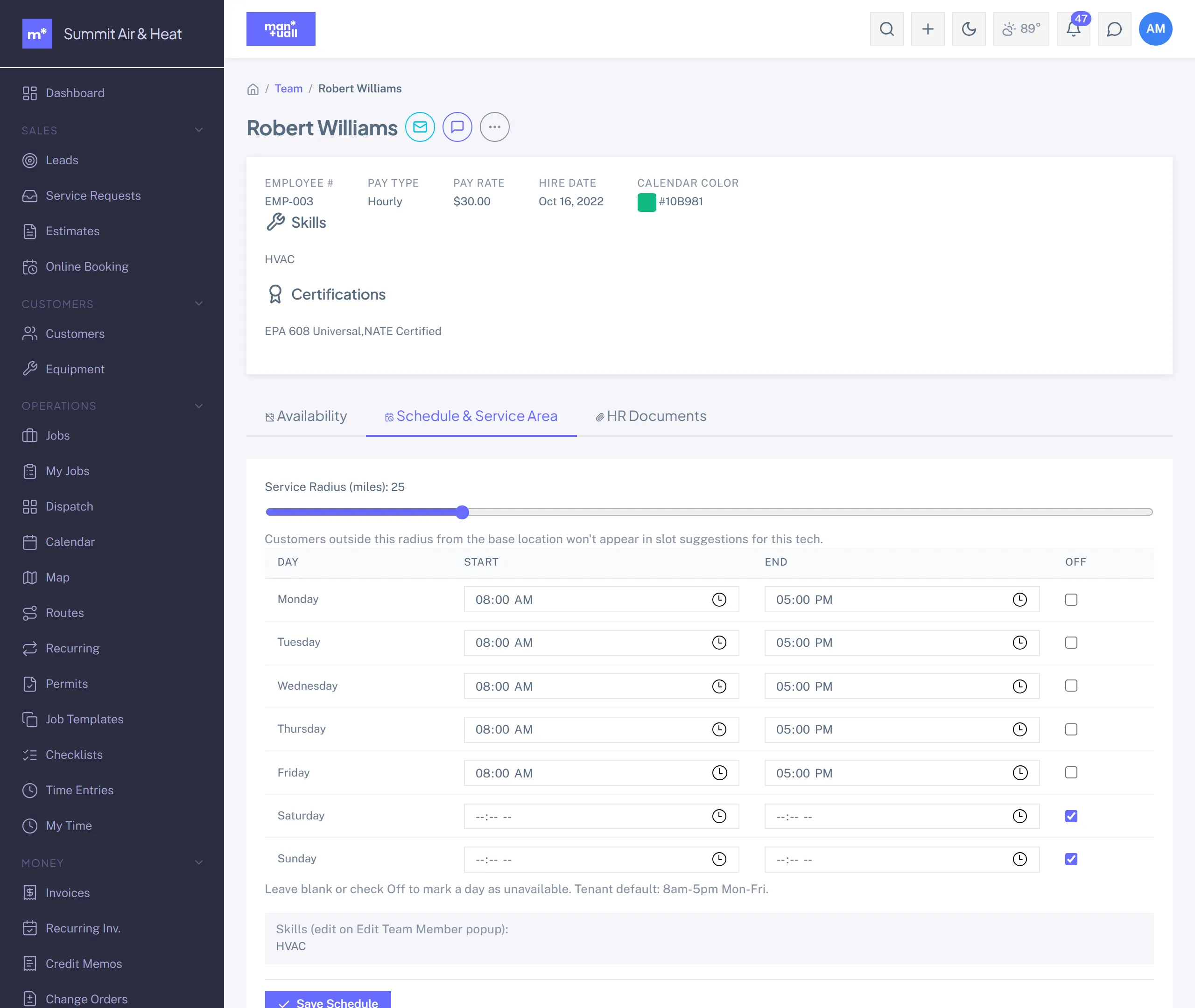
Skip this and the slot finder falls back to your tenant-wide Working Hours. Fine if everyone works the same hours, broken if not.
Blockers (PTO, sick days, training)
Team -> tech -> Availability -> + Blocker. Type, date range, optional note. The slot finder routes around it; the calendar shows it.
Map & Routes
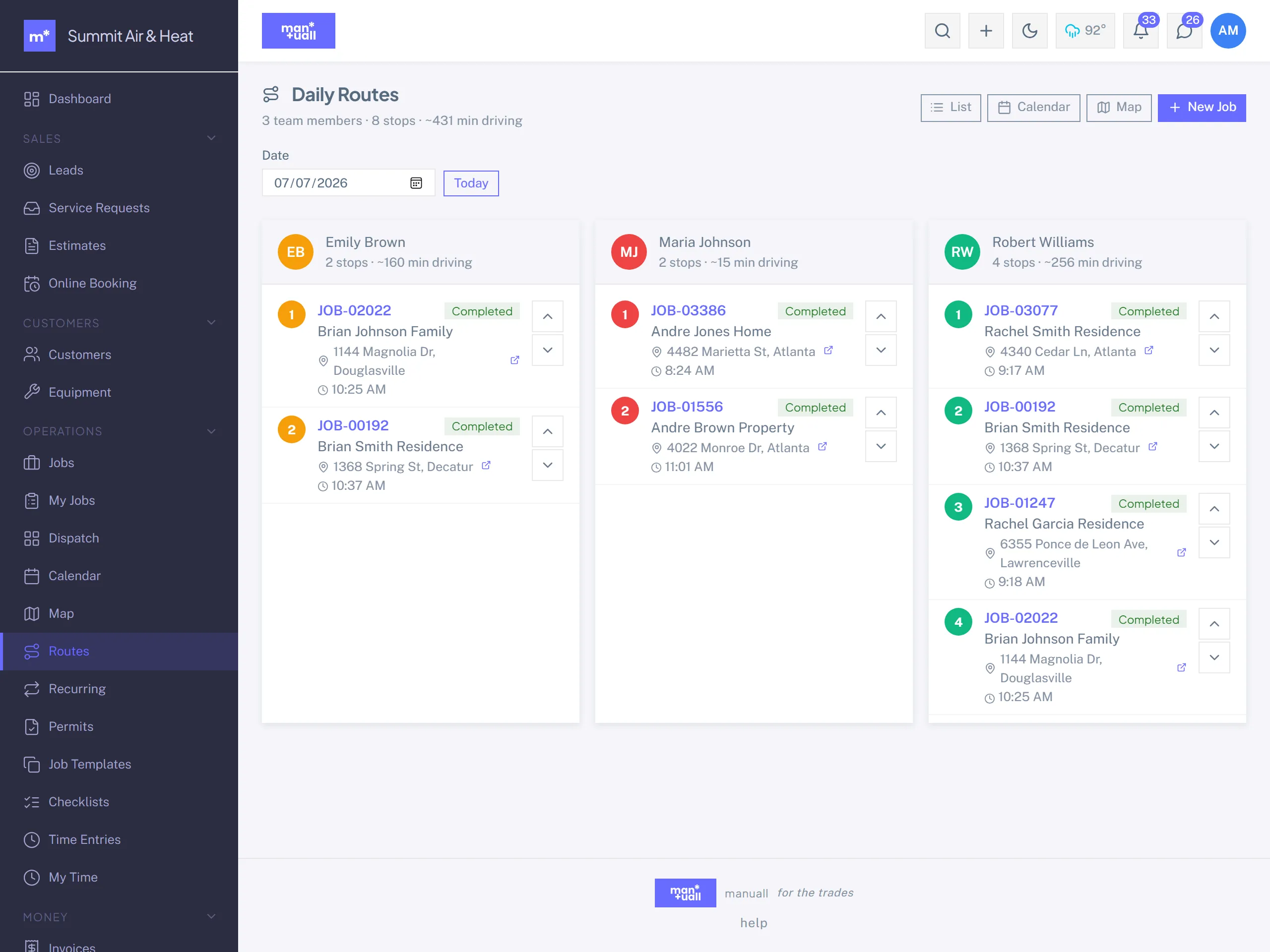
Sidebar -> Map (or the toggle in the Jobs header): the day's jobs as pins, colored by tech, click for a preview. Sidebar -> Routes: one ordered list per tech, drag to reorder, then Open route in Maps to hand the stops to Google Maps in order.
Reassign when something changes
Tech calls in sick, eight jobs need new homes:
- Sidebar -> Jobs.
- Filter: assignee = the sick tech, date = today and tomorrow.
- Tick the rows -> Bulk Actions -> Assign another tech.
- Reassigning a scheduled job can email the affected customers a heads-up.
Do and don't
| Don't | Do |
|---|---|
| Skip the Required Skills field | Set it once on the job template. The finder uses it forever. |
| Assign to "whoever's free" | Click Suggest Slots. It weighs things you can't see at a glance. |
| Leave jobs unassigned overnight | End-of-day check: every job for tomorrow has a tech and a slot. |
| Ignore a skills-match warning | It means a tech without the cert got assigned. Fix the assignment or the tech's skill list. |