
Purchasing & Inventory
Stock parts, set reorder points, raise POs, receive into a truck or warehouse.
Trades that carry parts need to know what they have, where it is, when to reorder, and what they spent. Four features cover it: Parts, Inventory Locations, Purchase Orders, and Expenses.
The four moving pieces
| Feature | What it tracks |
|---|---|
| Parts | Your catalog: part number, cost, sell price, stock, reorder point. |
| Inventory Locations | Where stock lives: warehouse, each truck. One part, stock in many places. |
| Purchase Orders | Orders to suppliers: line items, totals, receiving. |
| Expenses | One-off buys that skipped a PO (a tech grabbed a part at the corner shop). |
Setting up your catalog
A vertical pack seeds the parts its trade consumes on a job, so the catalog is not empty on day one. What it cannot know is your side of them: cost and price come in at a national average and carry a Set your price badge, stock comes in at zero, and there is no reorder point, because a reorder point against an uncounted truck would flag everything low the morning you signed up.
So the first pass through the catalog is yours:
- Sidebar -> Inventory & Price -> Parts.
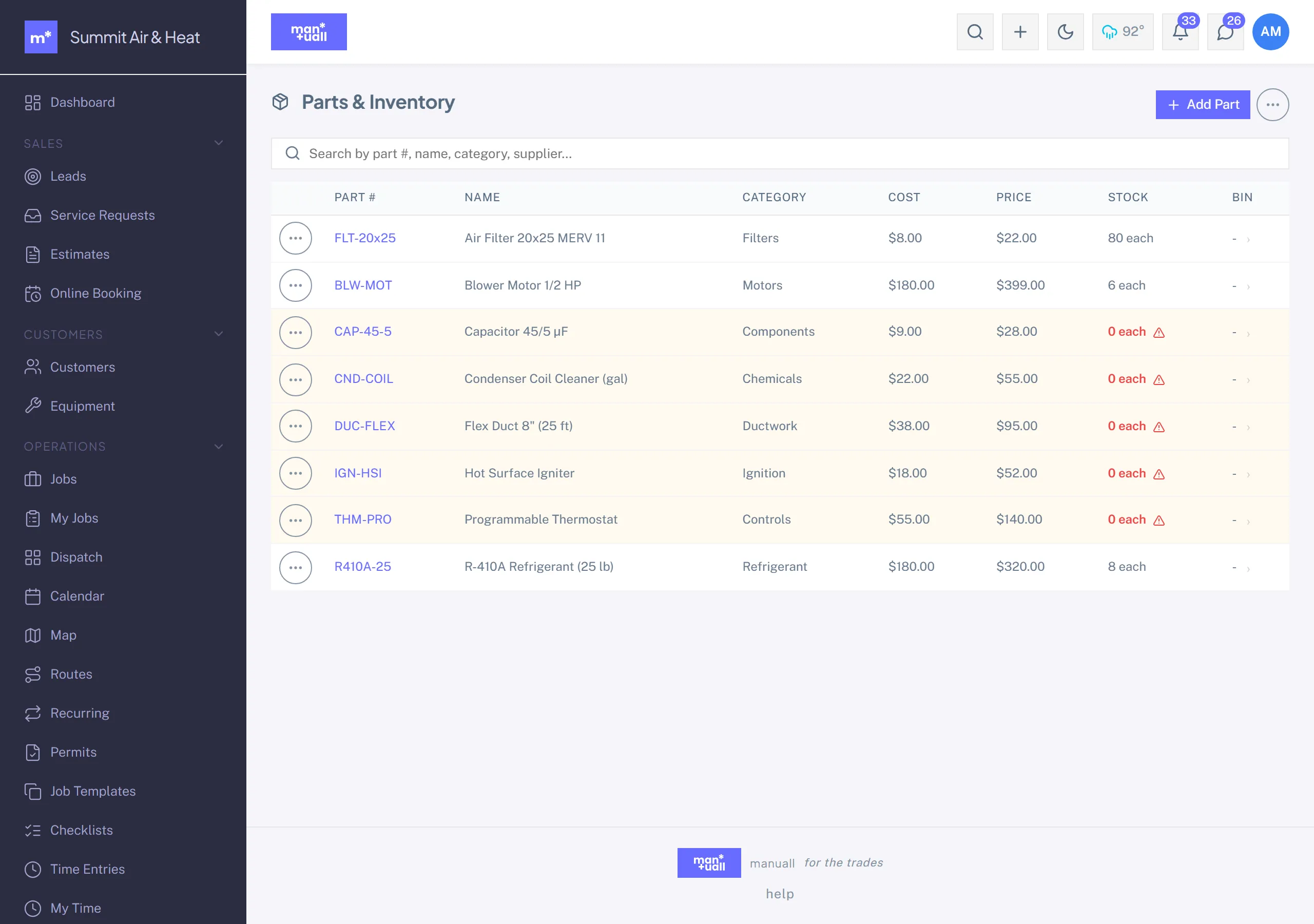
- Open a part. Set Cost (what your supply house charges) and Price (what the customer pays). Margin% computes for you.
- Count what is on the truck and in the shop, and enter it as stock.
- Set the reorder point: when stock drops to it, the part flags as low.
- Optional: link a default supplier.
- Save. Saving clears the badge, which is how you see what you have been through.
Anything the pack did not carry, add with + New Part: part number, name, unit, cost, price.
Bulk loading: Settings -> Data -> Import -> Parts.
Inventory locations
Sidebar -> Inventory & Price -> Locations. Your warehouse, a truck per tech, and any other spots you need. Set on-hand quantity per part per location. When a tech uses a part on a job, Manuall debits the location they're working from.
Transferring stock
Locations -> the destination -> Transfer. Pick the source, the part, the quantity. Source debited, destination credited.
Cycle counts
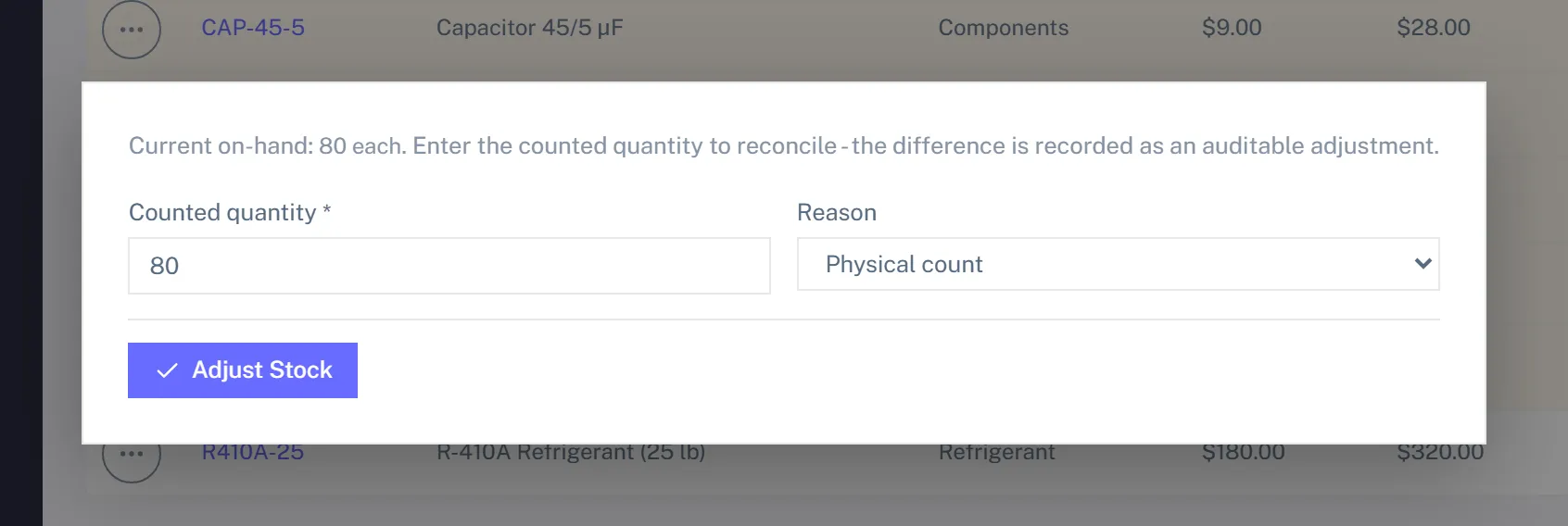
Periodically, count a location physically and reconcile: on the part, use Adjust to set on-hand to the counted number. Manuall records the correction as a stock transaction so the history stays clean.
Reorder workflow
- Parts -> filter to "below reorder point" to see what's low across locations.
- Click Generate Reorder PO. Manuall drafts purchase orders for the low parts, grouped by supplier (it pre-fills a sensible reorder quantity).
- Review each draft, adjust quantities, and print it to send to the supplier.
Purchase order status
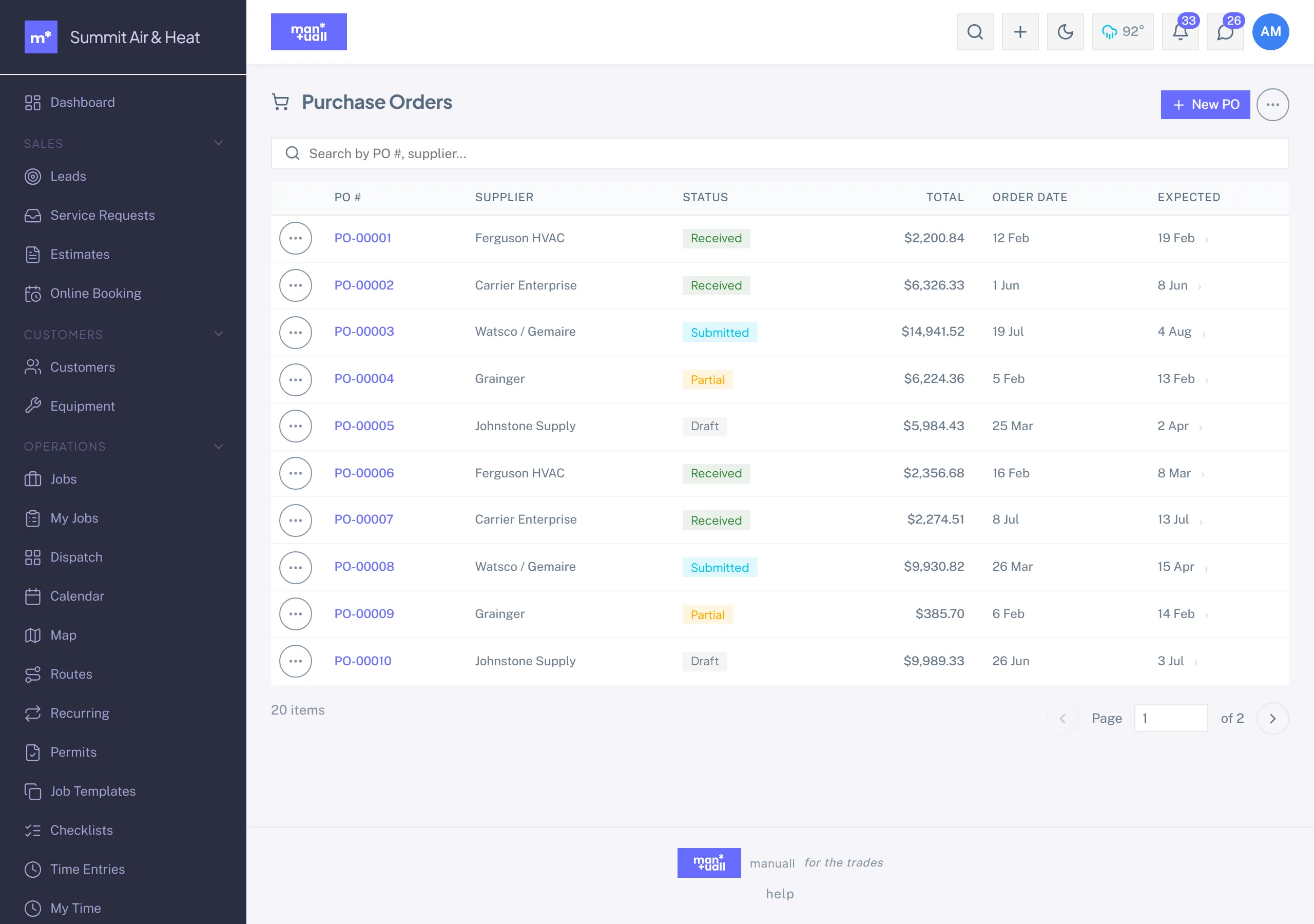
A PO moves through Draft, Submitted, Partial, and Received (with Cancelled and Overdue available). It also carries a separate approval track: Request Approval sends it to your Admins and Managers, who Approve or Reject before it goes out.
Receiving stock
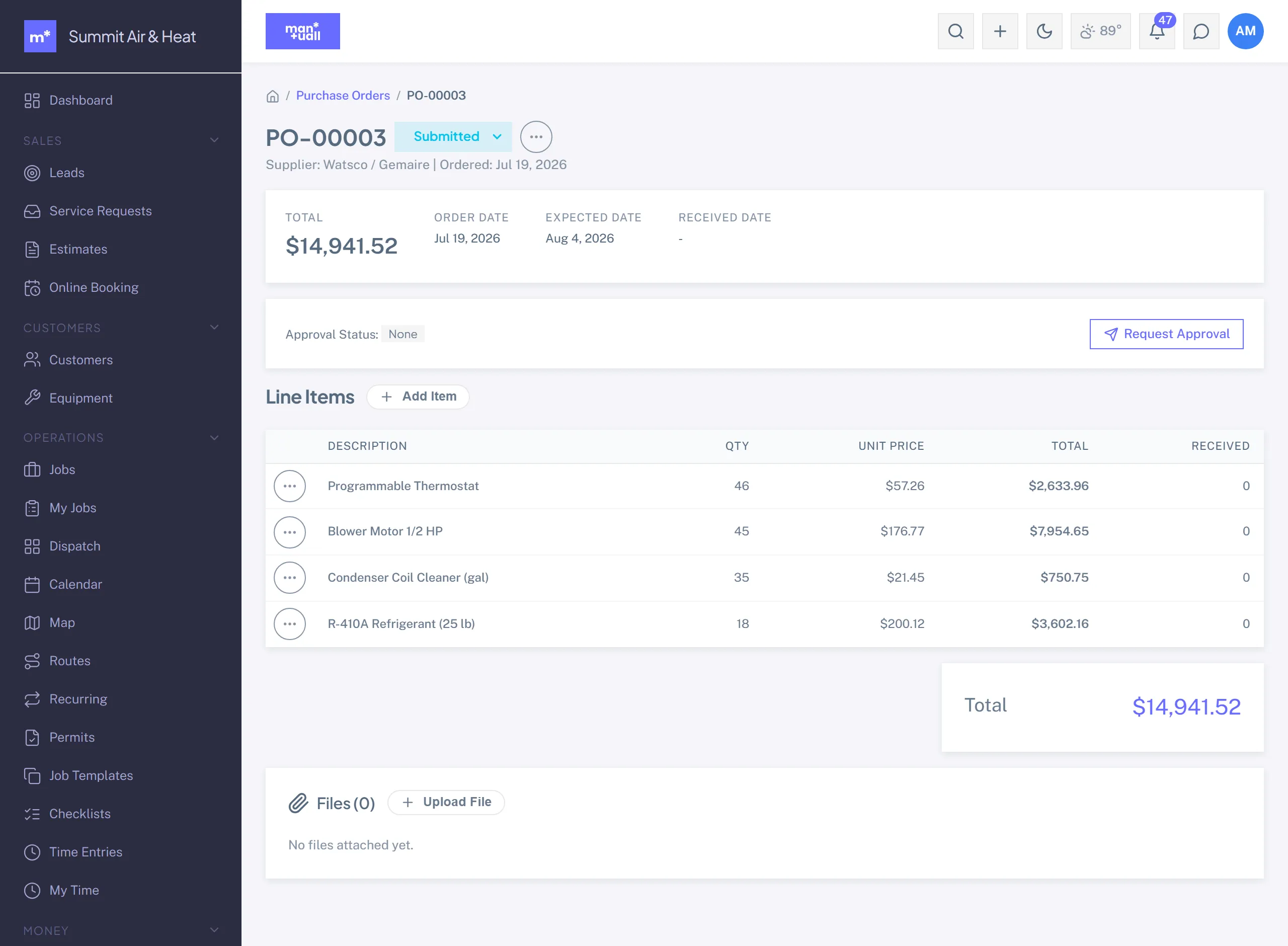
- Open the PO when the order arrives.
- Per line, enter the received quantity (it can differ from ordered).
- Pick the destination location (warehouse by default, or a truck).
- Save. The quantities credit stock and the PO is marked Received.
Tech-side: using parts on a job
- Tech opens the job on the phone.
- Tap + Use part.
- Search by part number or name.
- Quantity. Save.
- The part lands on the job's line items at the sell price, and the truck's stock is debited.
Expenses (one-off purchases)
When a tech buys a part at a corner shop because the warehouse is too far, that's an Expense, not a PO.
- Sidebar -> Money -> Expenses -> + New Expense.
- Tech, date, amount, category (Parts, Fuel, Tolls, Meals, and so on).
- Optional Job link, so the cost flows to that job.
- Attach the receipt (up to 10 MB).
- Save. It sits Pending until a manager approves it.
In Analytics
- Inventory & Cash Flow -> Inventory Turnover: how often stock turns.
- Procurement -> Open PO Value: dollars on POs not yet received.
- Procurement -> Top Suppliers: by spend, your negotiation leverage.
- Procurement -> Procurement Cycle Time: from PO to received.
- Expense Analytics: total expenses by category, employee, and job.