
Estimates & Deposits
Quote the work, send for approval, collect a deposit, convert to a job.
Estimates are your quotes: your offer to do the work for a stated price. Deposits are partial up-front payments collected at approval, common for tickets over $1,500 in residential and table stakes in commercial. Manuall ships both as first-class flows.
The estimate lifecycle
The common path is Draft (building it) -> Sent (emailed, portal link live) -> Approved (customer hit the button) -> converted to a job. A customer can also decline it, ask for a revision, or let it lapse to Expired past the expiry date you set. Status is a fixed set, so a bad value can't slip in.
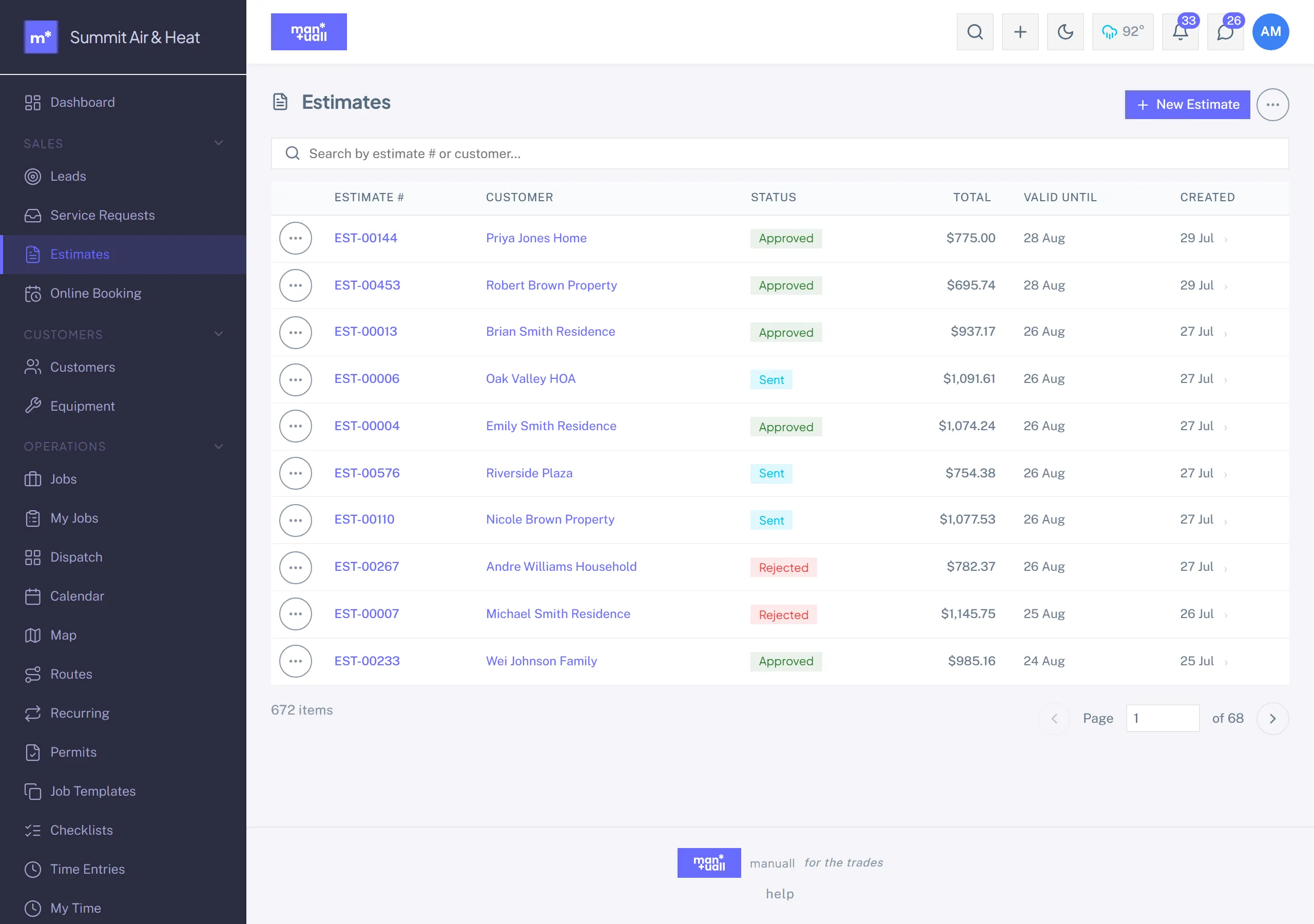
Building an estimate
- Start from a customer (Customer detail -> Estimates tab -> + New estimate) or convert a lead to a customer first.
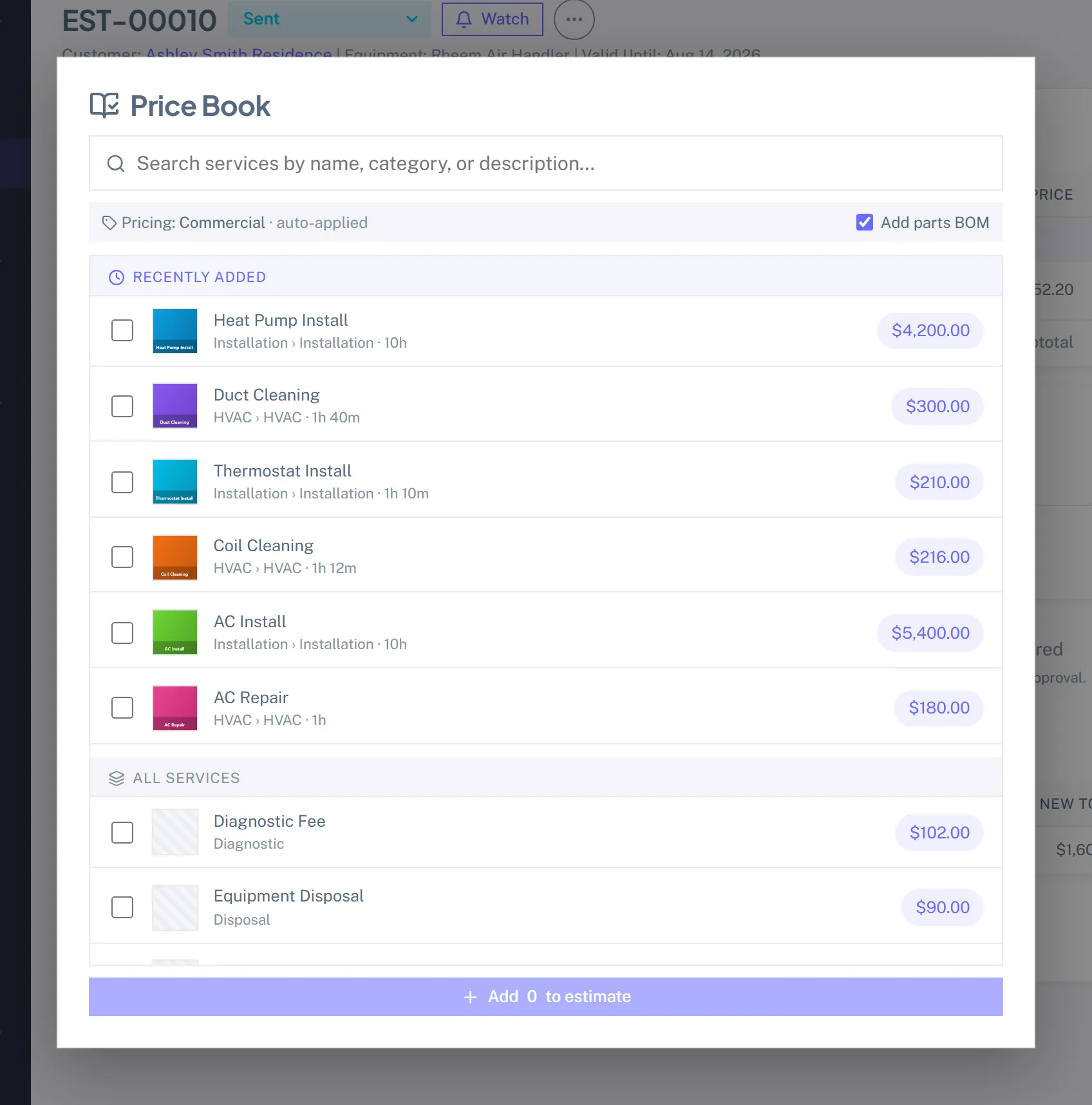
- Pick line items. + Add from Price Book opens the picker: search, browse by category, or grab a recent one.
- The tier auto-applies. Commercial customer -> Commercial price; Member -> Member price; otherwise Default.
- Override line by line. Click a unit price to edit. + Add custom item handles anything not in the Price Book.
- Tax rate defaults to your first active rate.
- Notes: terms, scope, exclusions. They show on the portal and the print view.
- Expiry date defaults to 30 days.
- Deposit: see below.
- Save, review, Send.
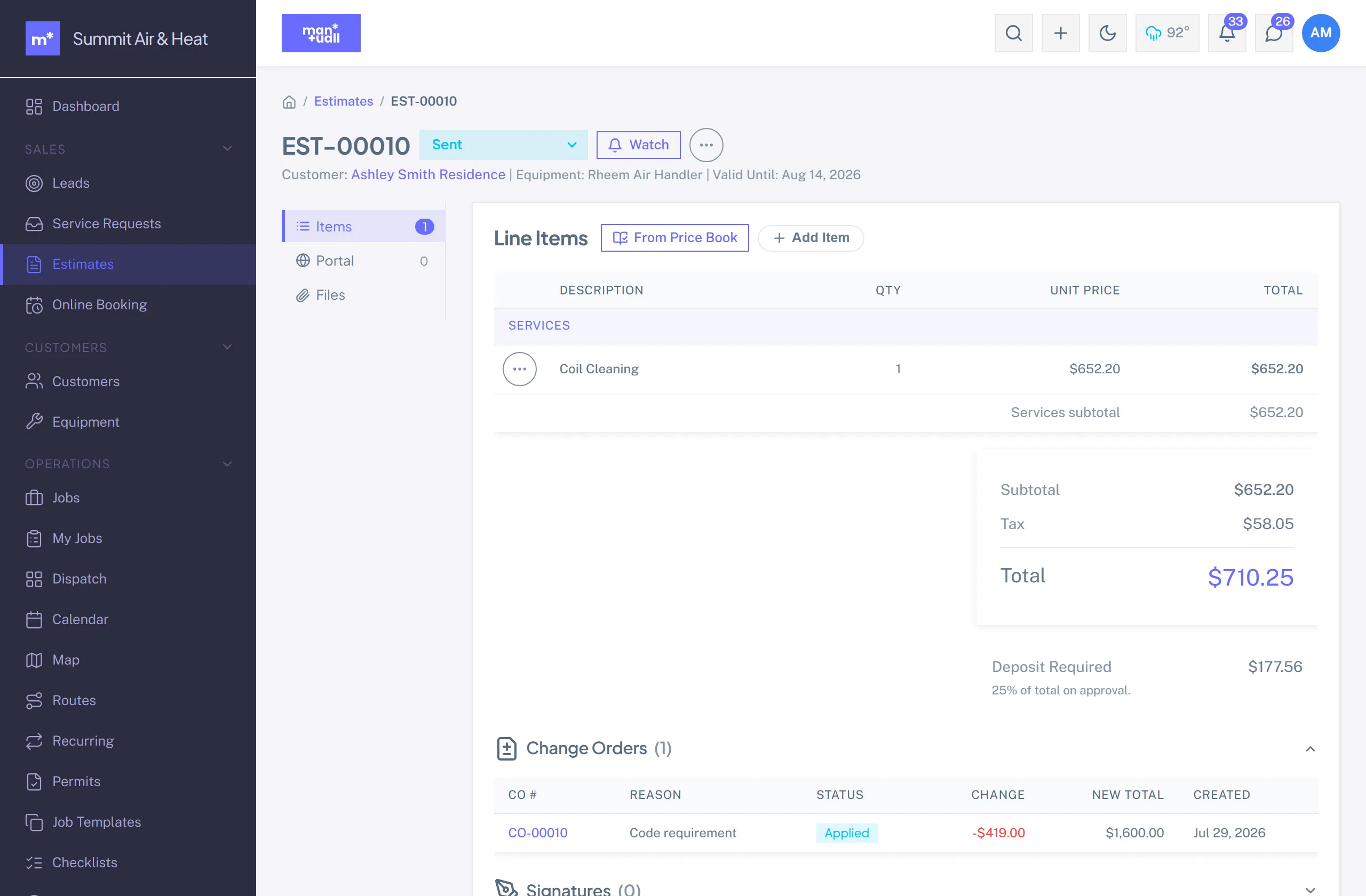
Deposits: the one-click on-approval payment
Two fields on the estimate:
- Deposit %: a percentage of the total.
- Deposit $: a fixed amount.
Set both and the dollar amount wins. Set neither and no deposit is collected.
What the customer sees
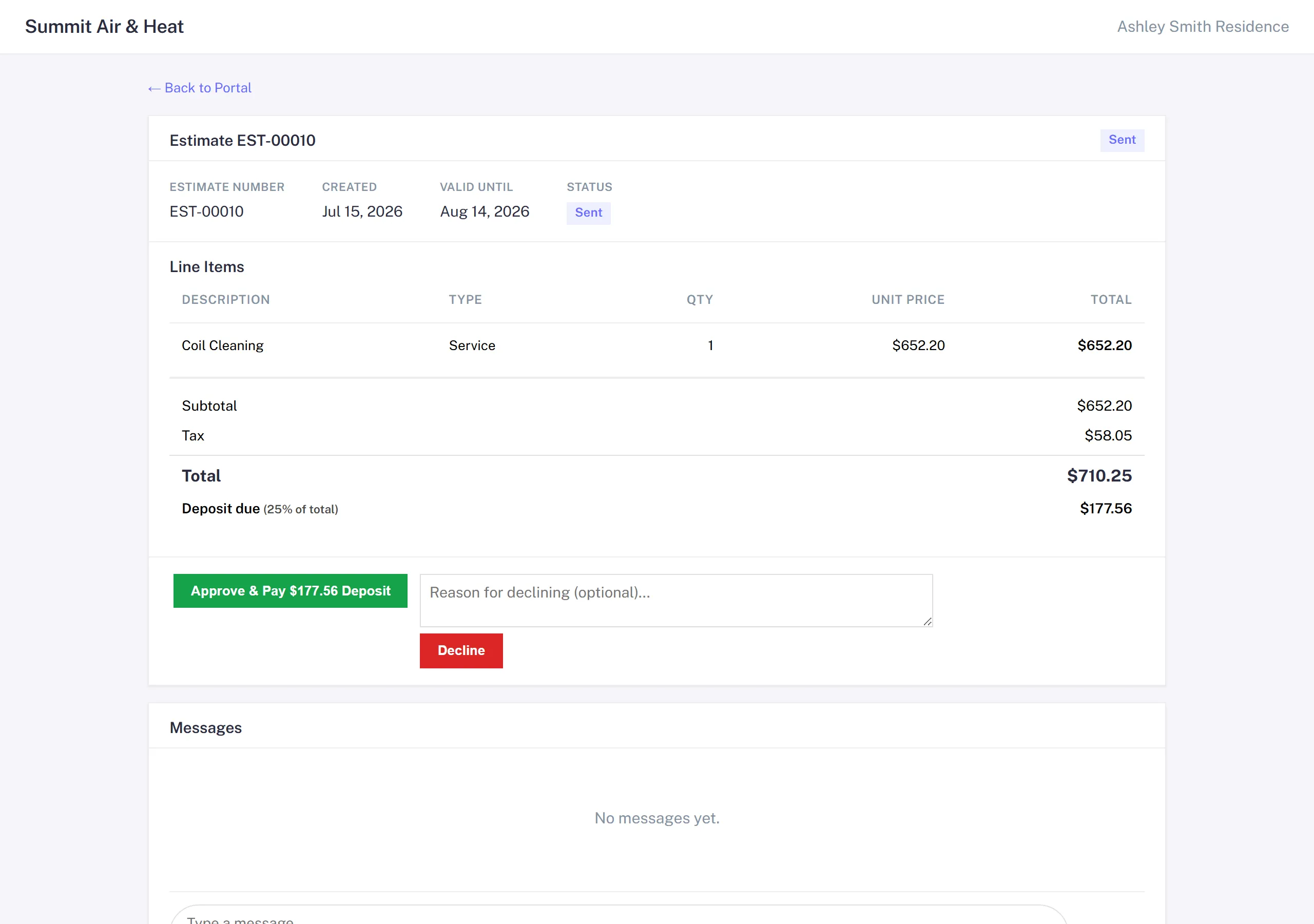
The portal approve button reads "Approve" with no deposit, or "Approve & Pay $X Deposit" with one. Clicking the latter:
- Marks the estimate Approved.
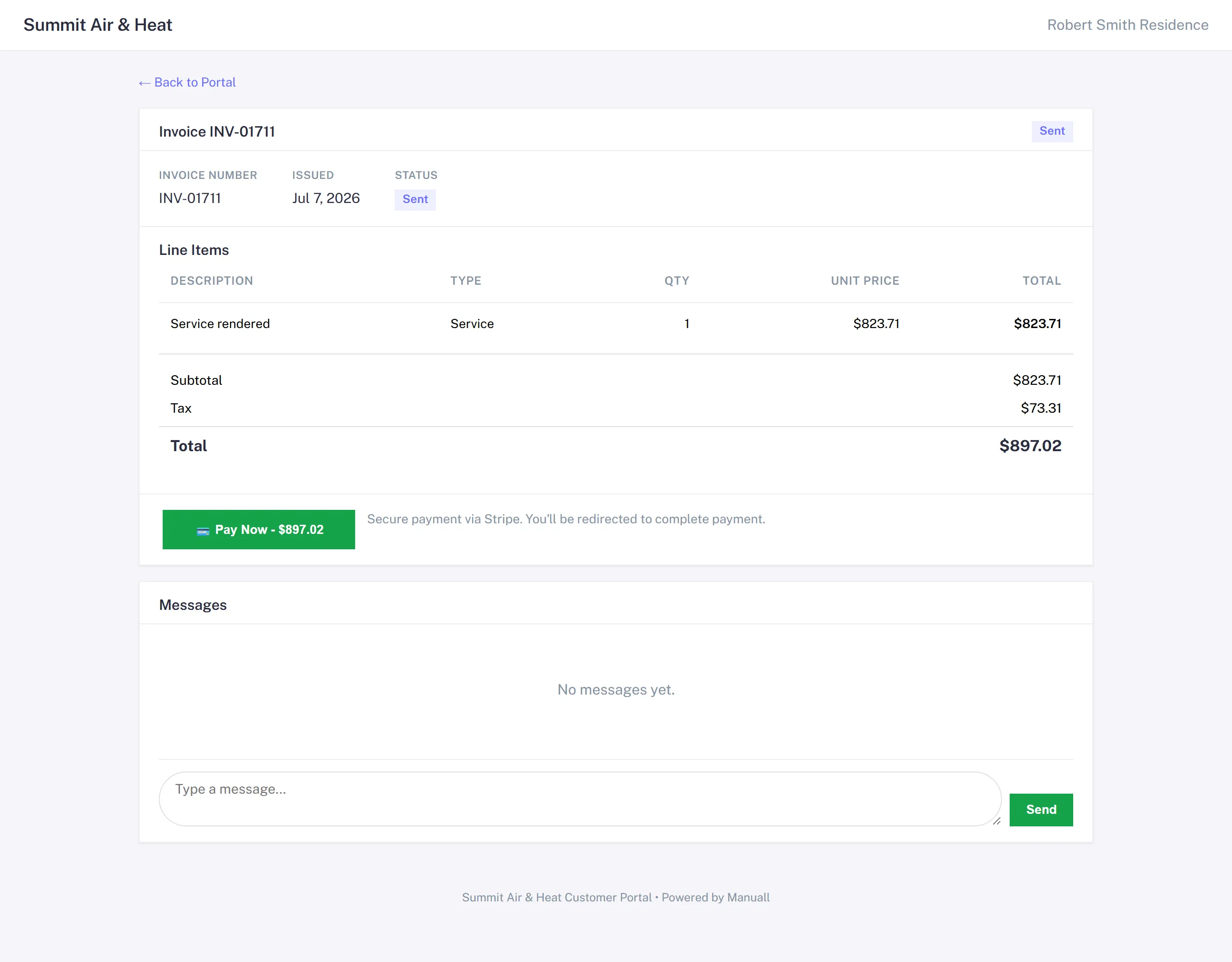
- Mints a deposit invoice (one line, type Deposit).
- Forwards to Stripe Checkout for the deposit.
- Once Stripe confirms, the deposit invoice is Paid and the estimate records the deposit collected.
Why this matters.
Without a deposit you carry the risk: parts ordered, the schedule blocked, and the customer ghosts. With one, the customer has skin in the game and you have working capital. On quotes above $5K (system replacements, panel upgrades, pool builds), deposit-on-approval visibly lifts close rates.
When the job completes
Generating the final invoice is one click on the completed job: total minus the deposit already collected equals the balance due. The customer pays the balance the same way, Stripe Checkout from the portal.
Approval over the phone (no portal)
- Open the estimate.
- Click Mark Approved.
- Optional: capture an on-site signature when the tech arrives.
- If you set a deposit, the deposit invoice is still minted but not auto-paid; collect cash or check, or send them the deposit invoice's payment link.
Convert to a job
- Estimate detail -> Convert to Job.
- Line items copy to the job.
- Optional: pick a Job Template for skills, duration, and a default checklist.
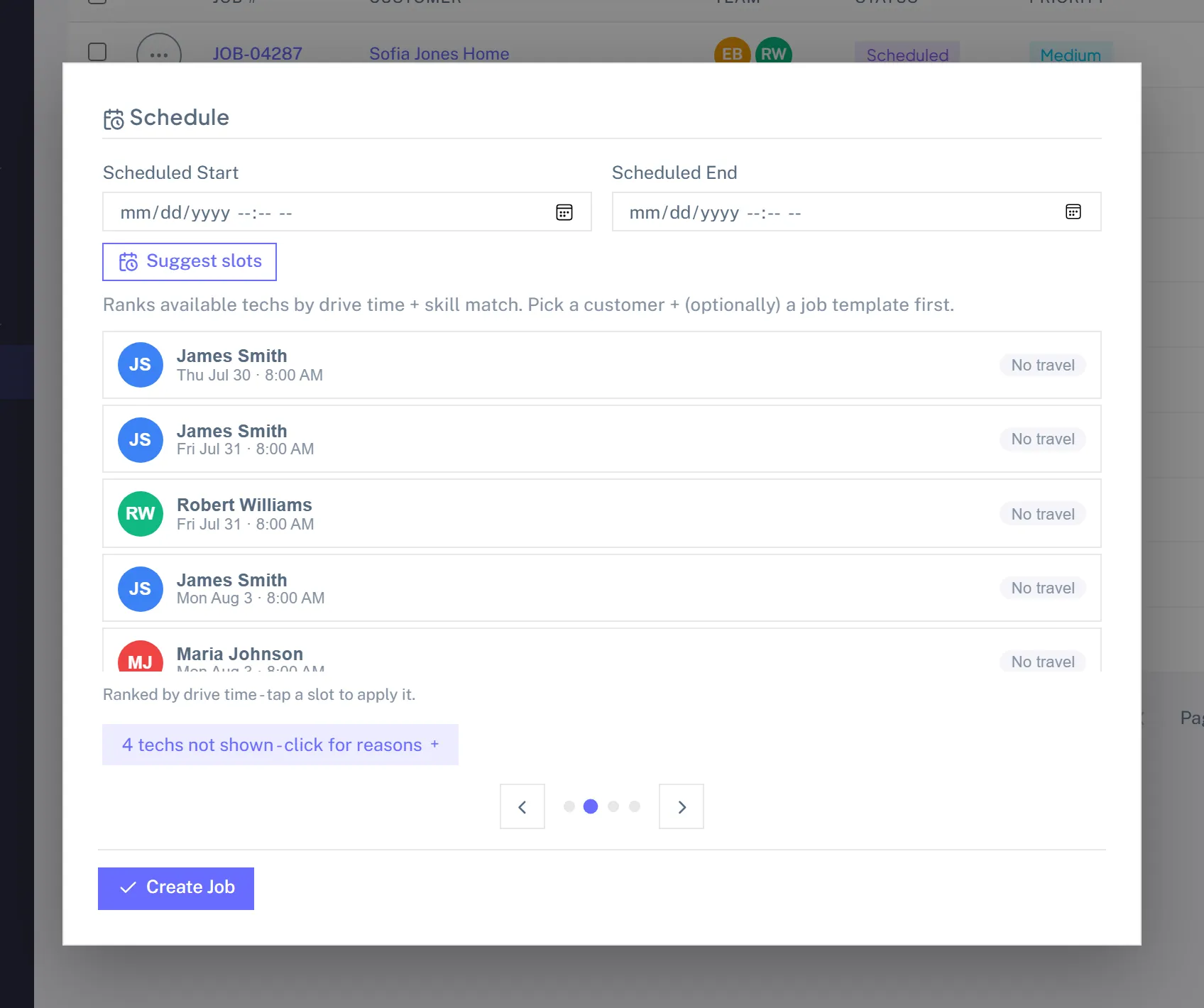
- Set Scheduled Start and End, or click Suggest Slots.
- Save.
The estimate stays linked to the job, so Analytics can cross-reference them (estimate-to-job conversion rate, days from estimate to job).
Revisions
Estimates aren't locked, but edits to a Sent or Approved estimate are written to the Audit Log so you can see what changed and when. If the scope is changing meaningfully, the right tool is a Change Order, not an in-place edit.
Chasing quiet quotes
Resend an estimate from its detail page if the customer never opened it. A quick weekly pass over your Sent estimates keeps deals from going cold.
Print view
Every estimate has a print view (Estimate detail -> Print): logo, business info, line items, totals, notes, signature. Print to PDF from the browser.