
Invite Your Team
Invite users, assign roles, deactivate former employees, and the last-admin safety guard.
Manuall is built for crews. One person running every job alone is solo software. To get the value, invite the rest of your team and give each person the access they need.
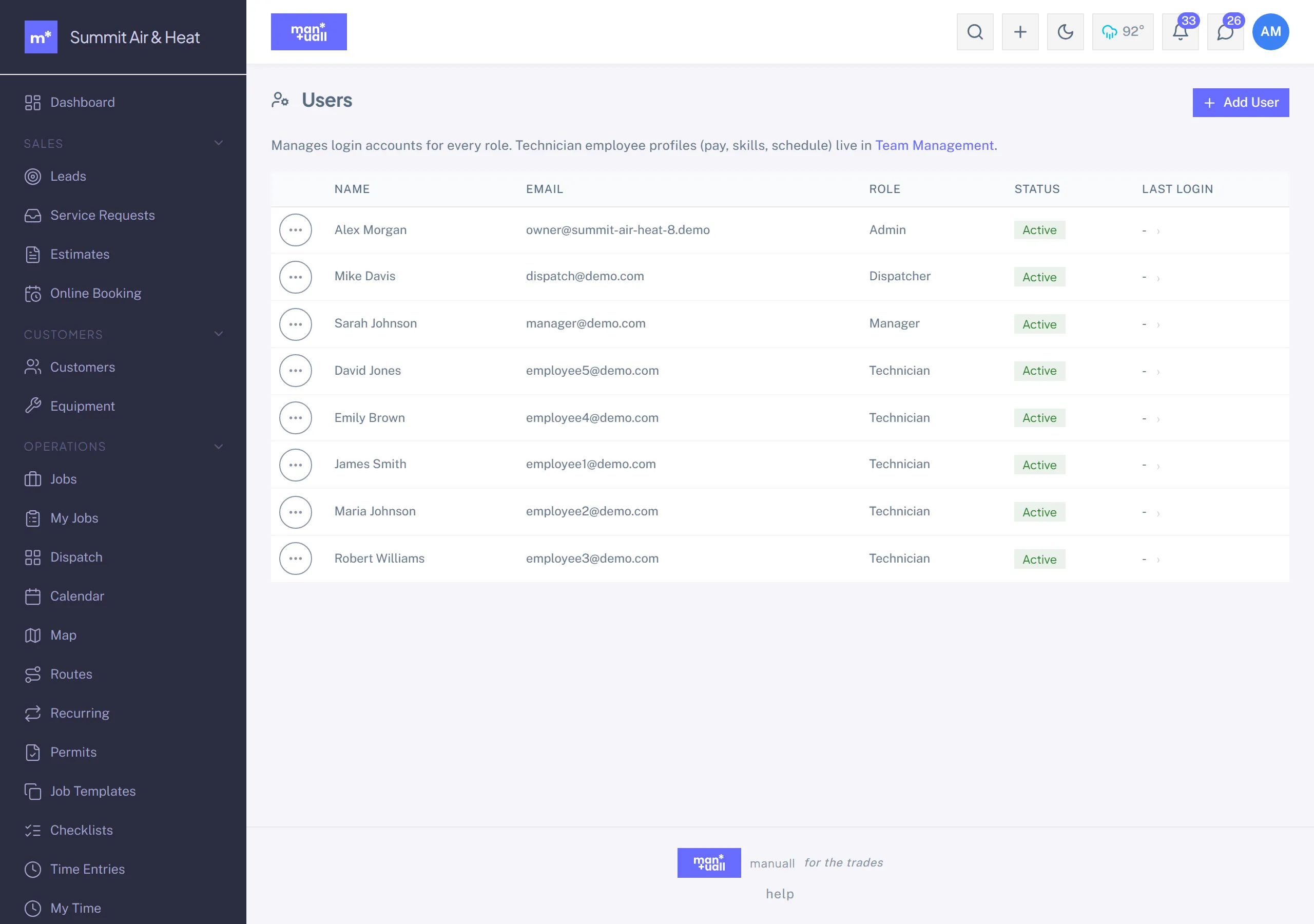
Send an invite
- Settings -> Users -> + Add User.
- Enter name, email, and pick a role. The role decides what they see (see the matrix below).
- Send. Manuall emails an invitation link good for 48 hours. The recipient clicks it, sets a password, and lands in the app.
Email doesn't arrive?
Check spam first. If it's not there, regenerate the invite from the user's row; the link in the new email is the one that works.
The four system roles
| Can do... | Admin | Manager | Dispatcher | Technician |
|---|---|---|---|---|
| See dashboard | yes | yes | yes | no |
| Sales (leads, estimates) | yes | yes | yes | no |
| Operations (jobs, dispatch, calendar) | yes | yes | yes | no |
| Money (invoices, payments, payroll export) | yes | yes | no | no |
| Insights (analytics, custom reports, surveys, audit log) | yes | yes | no | no |
| Inventory & price book | yes | yes | no | view only |
| Settings, billing, users | yes | no | no | no |
| My Jobs, My Time (own work) | yes | yes | yes | yes |
| Chat, Knowledge Base | yes | yes | yes | yes |
Custom roles
The four built-ins don't cover every shop. If you need finer control, say a Dispatcher who can also see Analytics, or a Technician who can edit (not just view) Customers, build a custom role.
- Settings -> Roles -> + New role.
- Give it a name (for example "Lead Tech").
- For each feature in the catalog, set the V/C/E/D flags: View, Create, Edit, Delete.
- Assign users to the new role in Settings -> Users.
Custom roles run through the exact same V/C/E/D permission check as the four system roles. More in Custom roles & permissions.
Deactivate (don't delete) a former employee
When someone leaves, deactivate them instead of deleting:
- Settings -> Users -> click their row.
- Toggle Active off.
- Their login stops working immediately. Their history (time entries, completed jobs, notes, audit-log entries) stays attached to them, so your reports and audit trail stay accurate.
Hard delete is reserved for genuine mistakes (a typo in an invited email, say) and lives in Settings -> Trash -> Permanently delete. The audit log still records the deletion.
The last-admin guard
You can't lock yourself out.
Manuall counts your admins on every role or active-status change. Try to deactivate the last admin, or drop the last admin to a non-admin role, and the change is blocked with a clear error. Nominate a second admin before you step away.
Resetting a teammate's password
Three options, best first:
- They reset it themselves. The login page has a "Forgot password?" link. The reset email lasts one hour.
- Send them a new invitation. Settings -> Users -> their row -> Resend invitation. The new link supersedes the old one.
- Admin sets it manually. Settings -> Users -> their row -> Set password. Use a strong temporary password and ask them to change it on first login.
Multi-business owners
Run two companies on Manuall and the second admin can invite your email to their tenant. Once you accept, a business-switcher pill appears in your topbar; click it to hop between businesses. Each switch asks you to sign in to that business, usually with a code we email you.