
For Technicians
Your job list, check in on site, capture signatures, use parts, log time, finish offline.
For TechnicianTechnician is the field tier. Your home screen is My Jobs, not the dashboard. You don't see customers' financials or other techs' schedules; your phone is scoped to your own day. The office handles routing, invoicing, and follow-up. You do the work.
Tomas's Wednesday
7:30 am: sign in
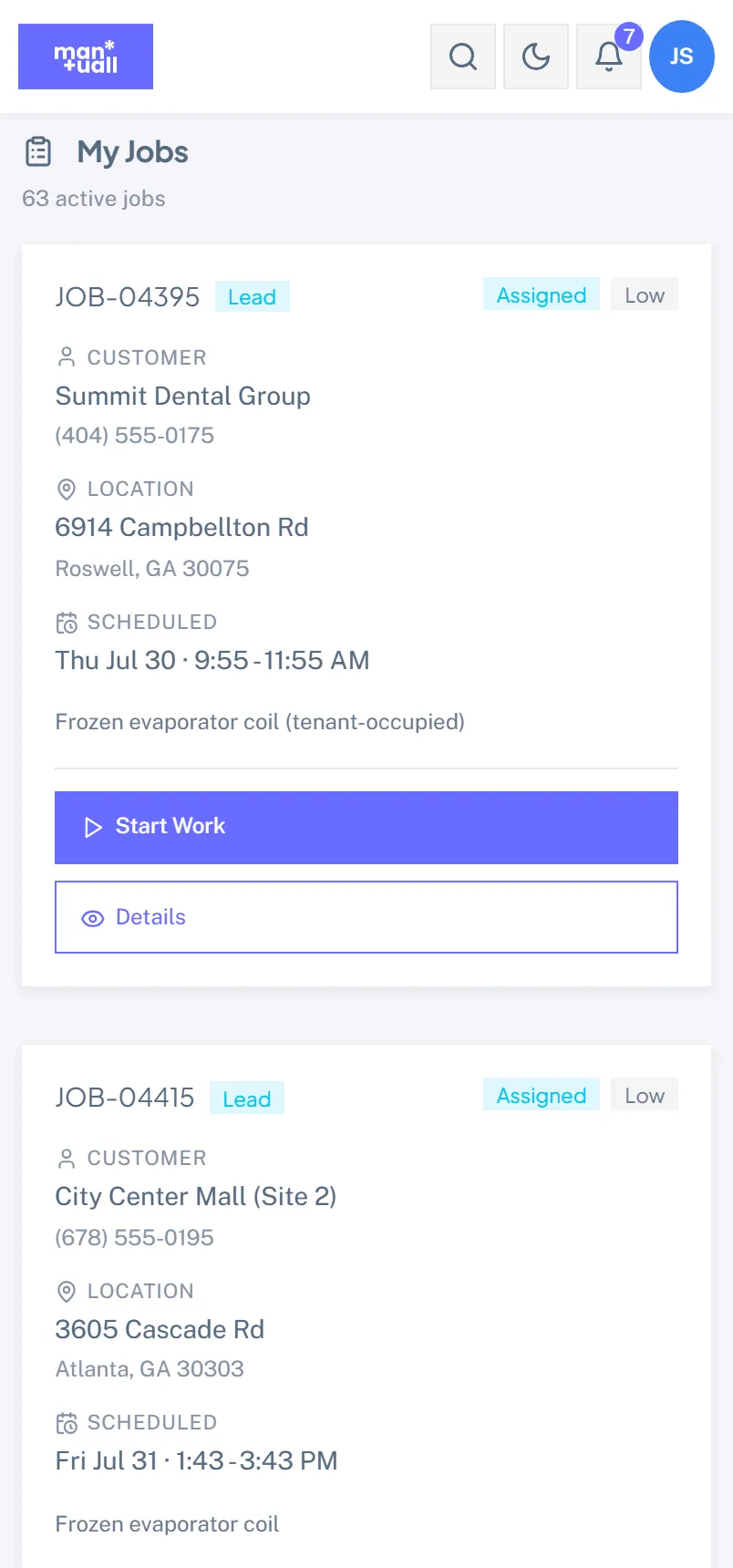
Tap the Manuall icon on your home screen (installed via Safari or Chrome: see Install the mobile app). Sign in once a day; the session lasts twelve hours. You land on My Jobs: today first, then tomorrow. Each card shows customer, address, time, and status. Read the descriptions before you head out.
8:15 am: leave the shop
- Tap the first job. Read the access instructions: "Code 4827 at gate, small dog in yard."
- Tap Open in Maps to hand the address to Apple or Google Maps.
- Tap On My Way if it's set up: the customer gets a text with your ETA, and the job moves to En Route.
8:35 am: arrive on site
- Park. Open the job.
- Tap Check In. GPS captures your coordinates and the timestamp, and the job flips to In Progress.
- If GPS is denied, Check In still works; only the coordinates are skipped. Ask your dispatcher about granting location access if your shop uses it for payroll.
- Start the timer when you begin (Start Timer on the Time tab). Stop and restart it if you step away (lunch, supply run); your time card reflects the total.
8:40 am: the job, tab by tab
| Tab | Purpose |
|---|---|
| Details | Description, customer notes, access instructions. Update status. |
| Time | Your running timer and past entries on this job. (Edits go through My Time.) |
| Photos | Before and after. Tap + for camera or library. |
| Services | Add services and parts; they become invoice line items. |
| Notes | Drop a note for next time ("Customer prefers Saturday AM"); it stays on the customer record. |
| Signature | Capture the customer's signature. |
9:00 am: do the work, log as you go
Don't batch logging to the end:
- Add parts. Services tab -> + Use part. Search by part number or name. Set the quantity. Save. The part comes off your truck inventory.
- Walk the checklist. If one's attached, mark each item pass or fail; on a fail, leave a note. The completed checklist becomes part of the record.
- Take photos. Before and after for installs. Captions help the office later.
10:30 am: sign-off
- Show the customer the line items you've logged. Talk through anything they're surprised by; it kills most post-job disputes.
- Tap Capture Signature, hand over the phone, they sign.
- Save. An empty signature is rejected with a clear error; re-sign.
10:45 am: wrap up
- Tap Check Out. Departure GPS and timestamp captured, timer stops.
- Tap Mark Complete. (If something blocks completion, set On Hold or Follow-Up and leave a note instead.)
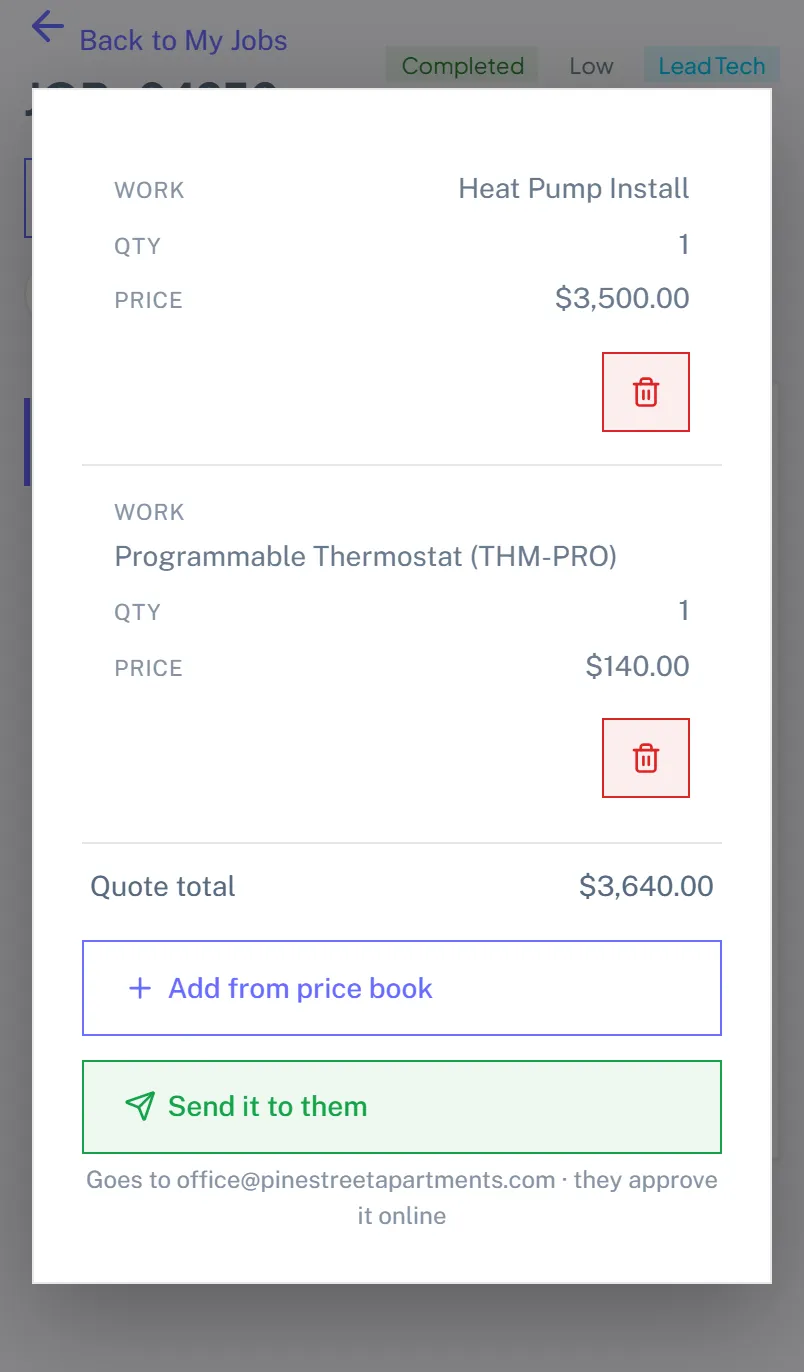
- Spotted something else that needs doing? Tap Quote More Work and add it off the price book. It goes to the customer as a proper estimate they approve online later; you are not haggling in a crawlspace.
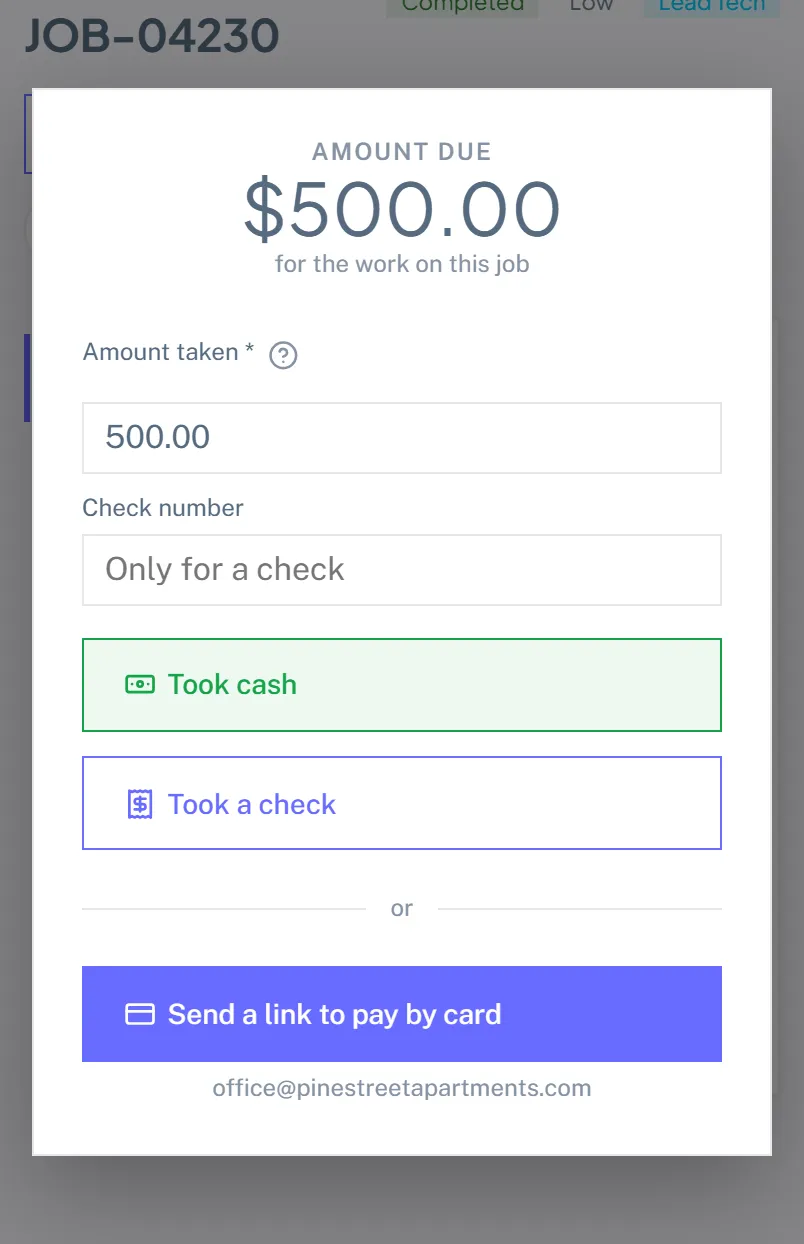
- Tap Collect Payment to see what today comes to. Take the cash or the check they are holding, or text them a card link. Skip it and the office bills as usual.
- Drive to the next job. The office handles follow-up and the survey send.
If you have to abandon a job mid-flight
Customer not home, wrong address, bigger problem than expected:
- Tap Check Out normally; the time still counts.
- Set status to On Hold or Follow-Up (or Cancelled if it's off).
- Add a note, ping the dispatcher in chat. They reschedule from their end.
The phone is your full toolbox
| Feature | When |
|---|---|
| My Jobs | Your assignment list. Default screen. |
| My Time | The timer on the job, plus any manual entries. |
| Price Book | Look up a service or part mid-conversation. Useful for an upsell. |
| Quote More Work | Price up work the customer is not having today, off the same price book the office uses. |
| Collect Payment | What this visit comes to, and cash, check or a card link to settle it. |
| Knowledge Base | SOPs and troubleshooting trees. Search by keyword. |
| Chat | Message the office or another tech without leaving the job. |
Offline mode is built in
Your work is safe, even where the signal isn't.
Check In, Check Out, time, parts, signatures, and photos all queue securely on your device when you're offline. The topbar shows a count of queued items, and the queue drains on its own when the signal returns. Duplicates can't happen if you keep tapping.
If your session expires while you're offline
Sessions last twelve hours. Stay offline through a long shift and the queue keeps holding your actions; the topbar switches to "Sign in to sync N actions." Sign back in, the queue drains, nothing is redone.
What you can't see (and why)
- Other techs' jobs: your dispatcher owns routing.
- Accounts receivable: invoice history, what is overdue, who owes what. You see what today's visit comes to and nothing else.
- Analytics, Customer Feedback, the Audit Log.
- Price Book editing (you can browse, not change).
- Settings.
You also cannot edit, void or refund a payment once it is recorded. That is not an oversight: it is what keeps the person who took the cash from adjusting it afterwards. A mistake goes to the office.
A custom role can widen this (a Lead Tech who sees Customers fully, say). See Custom roles.