
Configure Your Business
Logo, business info, tax rate, working hours, number prefixes: the settings that touch every document.
Five settings get stamped on every document you ship: invoice, estimate, portal page, email. Get them right on day one and you won't be re-editing later.
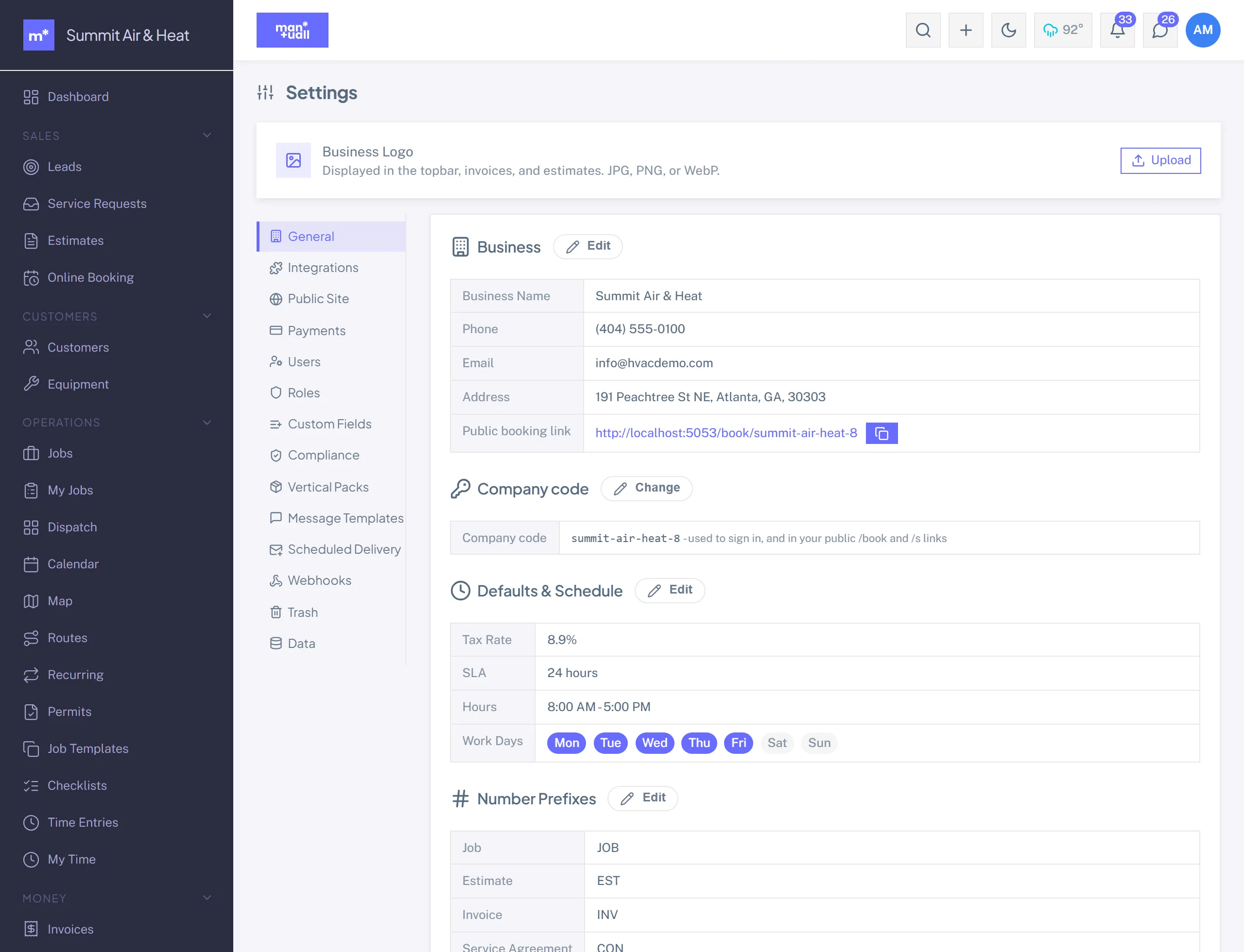
1. Business info & logo
Settings -> General -> Business info
- Business name. Tops every invoice and estimate, opens every customer-portal page, and labels your business-switcher pill.
- Logo. A PNG with a transparent background works best. Aim for 800x800 max. The file lives in your own secure storage, no external CDN.
- Business address, phone, email. These show on customer-facing docs as your contact info. Use the address customers should send checks to (if any), not necessarily where the crew sits.
- Website. Optional. If set, the customer portal links back to it.
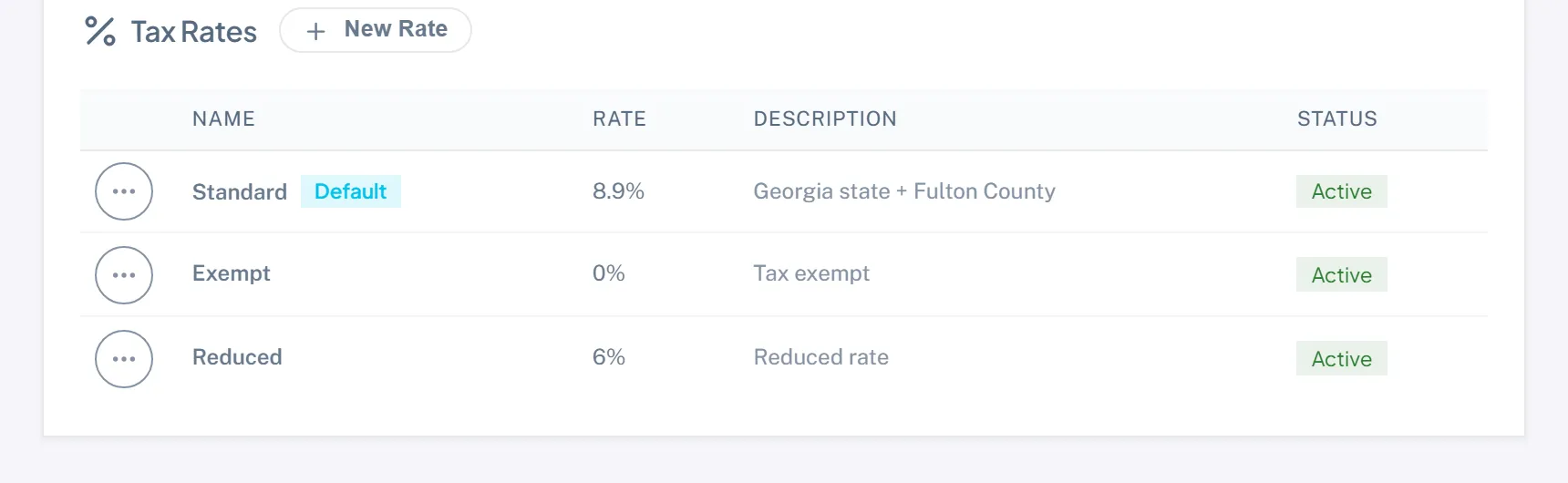
2. Tax rates
Settings -> Tax Rates
Manuall supports multiple tax rates. Each estimate and invoice line can use any active rate.
- Add your default rate. Name it usefully ("OH state 5.75%") and set the percentage.
- Add more rates if you cross jurisdictions. Common for shops near a state line, or selling to commercial customers who carry exemptions.
- Mark a customer tax-exempt on their record, and invoices for that customer skip tax entirely.
This is not tax advice.
Manuall doesn't compute your tax obligation; it applies the rate you tell it to. Talk to your accountant about which rate applies to which line. Manuall has the data, your accountant has the rules.
3. Working hours & time zone
Settings -> General -> Working hours
Working hours are the schedule that everything calendar-related respects: the slot finder, the dispatch board, the calendar's business-hours shading, the survey-send window, recurring-job generation.
- Set each weekday's start and end.
- Mark the days you are closed (Sunday for most shops).
- Set your time zone. Manuall stores every timestamp in UTC and converts to your zone at display time. Pick the wrong zone here and every job shows at the wrong hour.
4. Number prefixes & sequences
Settings -> General -> Numbering
Decide how each document type is numbered. The defaults are sensible; override them if your accountant or QuickBooks setup needs something specific.
| Document | Default prefix | Next number |
|---|---|---|
| Jobs | (none) | 1001 |
| Estimates | EST- | 1001 |
| Invoices | INV- | 1001 |
| Contracts | CON- | 1001 |
| Credit memos | CR- | 1001 |
| Change orders | CO- | 1001 |
Numbers are handed out atomically, so two users creating invoices in the same second won't collide.
5. Currency & locale
Online payments are USD-only today. Date formatting follows your tenant's time zone.
Integration credentials (do these when you need them, not on day one)
Settings -> Integrations and Settings -> Payments
- Stripe. Settings -> Payments connects your own Stripe account through Stripe Express (about three minutes; Stripe runs the onboarding). Charges land on your account and Stripe pays you directly on your own payout schedule. Card payments run about 3.4% per transaction, all-in.
- SMS. Platform-managed. Nothing to paste. Outbound text goes from a shared platform number; STOP and opt-out are handled by the carrier.
- QuickBooks Online. Two clicks: Settings -> Integrations -> QuickBooks -> Connect, then authorize with Intuit. No developer credentials to paste. One-way (outbound) sync. See QuickBooks Online.
- Public API. Each user generates their own bearer key from Profile -> Public API Key (it is shown once). Read access at
/api/v1/*, Business tier. See Public API & Webhooks.
Done?
Move on to inviting your team.